SCORM LMS Integration Guide
This guide shows how to inject the OctoProctor proctoring SDK into a SCORM package and run it in your own LMS. To play SCORM packages as-is inside OctoProctor without changing them, see the SCORM Player Guide.
1. How it works
You can integrate the OctoProctor proctoring system with any SCORM package and upload it to your LMS for use. There can be two variants:
- You create an assessment with a third-party quiz maker, export it to the SCORM package, and inject the proctoring script into it.
- You create an empty SCORM package and inject the proctoring script into it. This will open your assessment contents in an IFRAME on the proctoring side. However, your assessment content should support restricting access by password, otherwise a test-taker may open the assessment without proctoring.
2. Create a SCORM package
First of all you should create a SCORM package with your assessment content or without it if the content will be opened in IFRAME by URL from a third party resource e.g. LMS.
2.1. Create and export quiz content using Lumi App
Lumi is a free application for creating a quiz and exporting it to SCORM version 1.2 package.
- Download Lumi Desktop Editor for Windows, macOS or Linux.
-
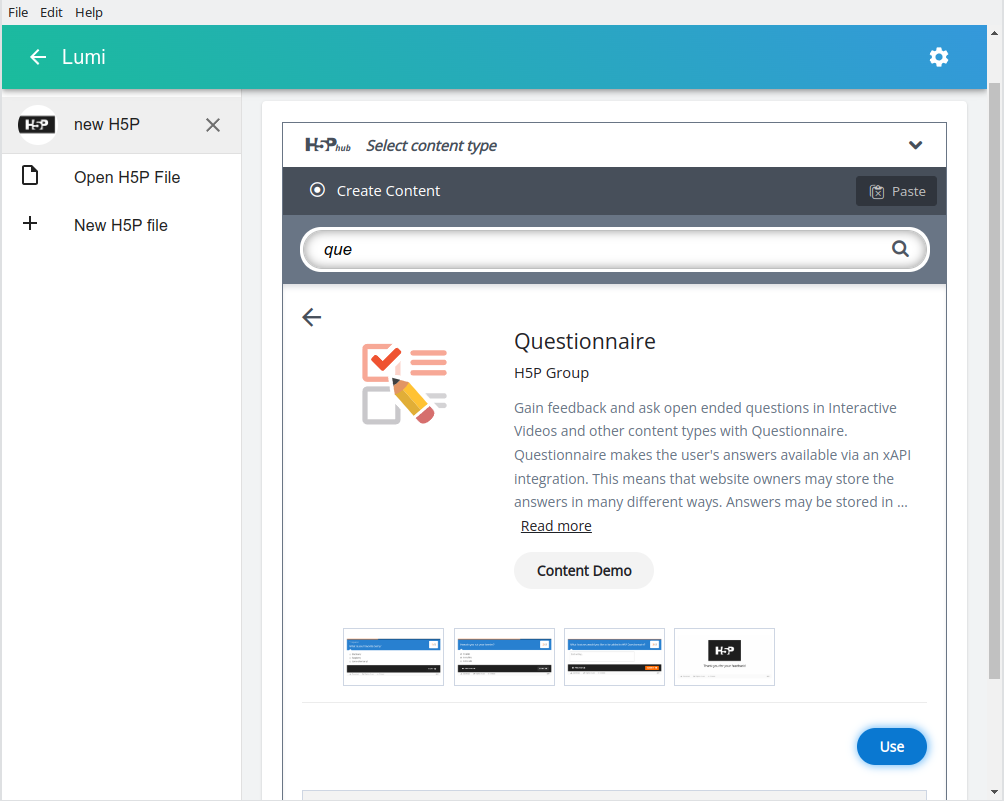
Create a new H5P project and select content type e.g. Questionnaire.
-
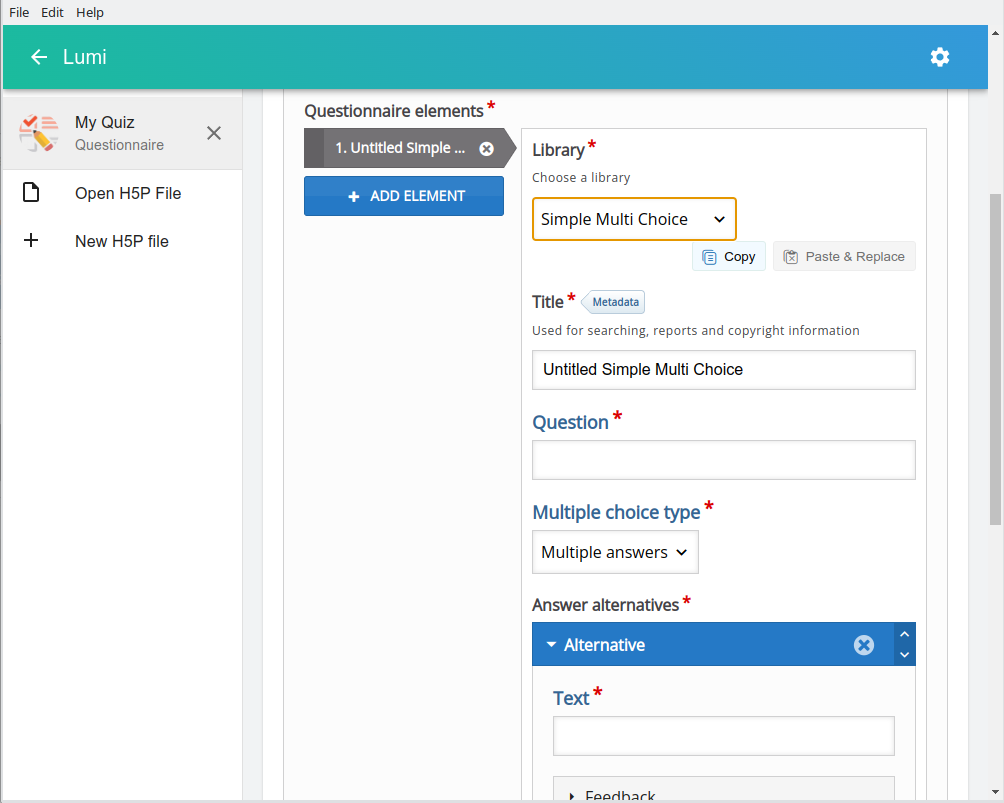
Add question elements and set up question logic and scoring.
-
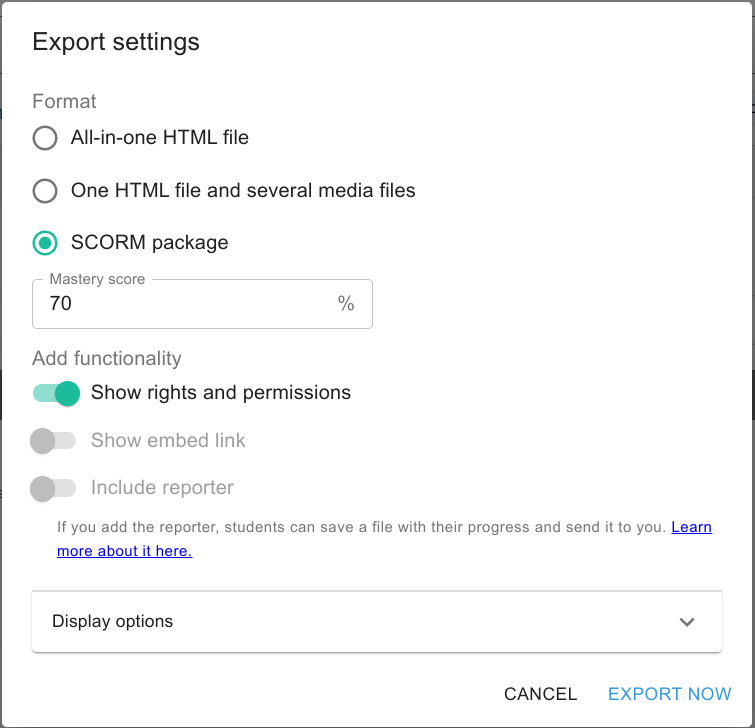
Export the quiz to a SCORM package (File → Export).
2.2. Create and export quiz content using LearningApps.org
LearningApps.org is a non-commercial online platform with authoring tools for creating and playing quiz content. It has a huge library of ready-to-use apps. You can also create your own apps using our own content.
You can export any SCORM 1.2 packaged app that is ready to load into LMS.

2.3. Create and export quiz content using iSpring QuizMaker
iSpring QuizMaker is a commercial application for creating a good looking quiz and exporting it to a SCORM package (versions 1.2 and 2004 are supported).
- Download iSpring QuizMaker for Windows (14-day trial)
-
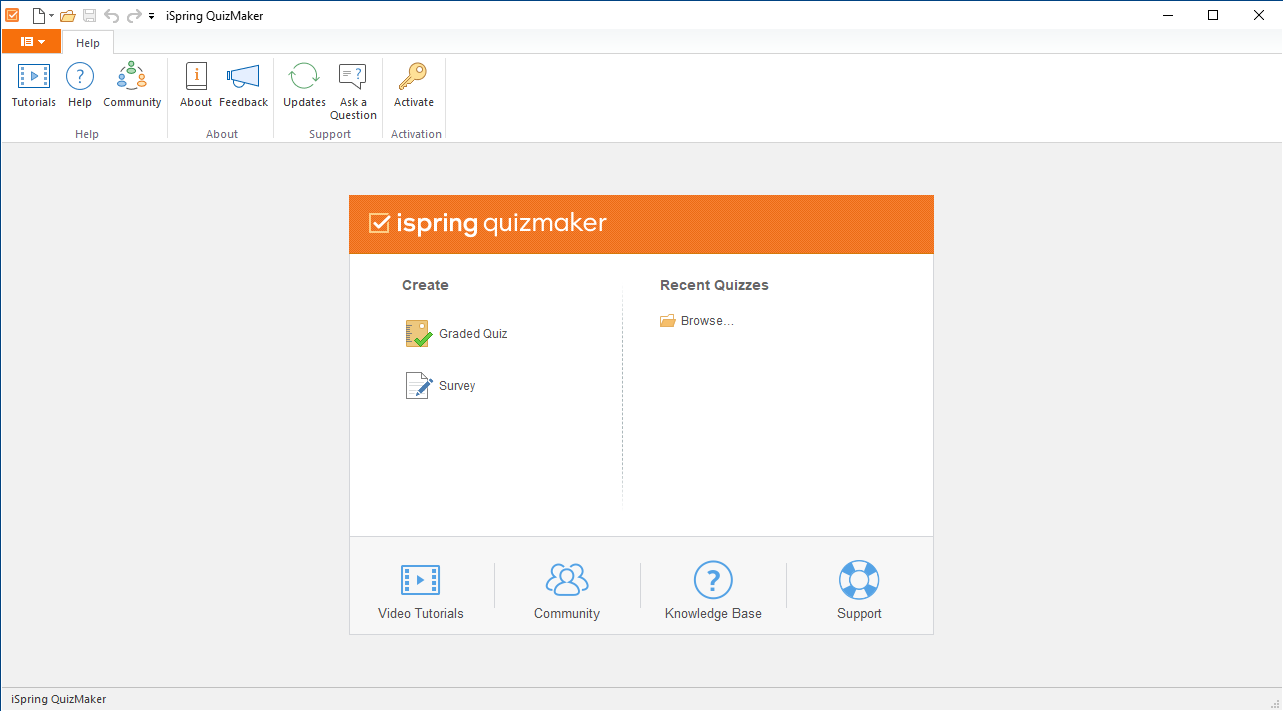
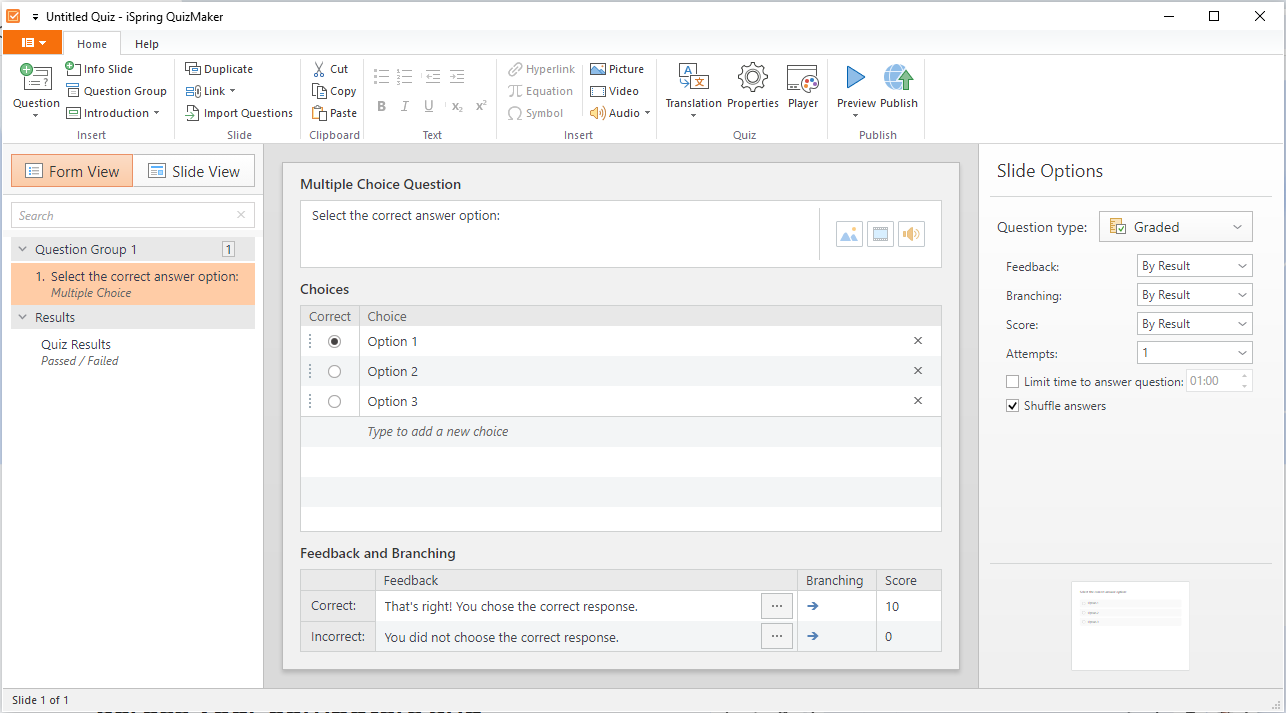
Create a graded quiz, see the tutorial on how to do this
-
Add question elements and set up question logic and scoring.
-
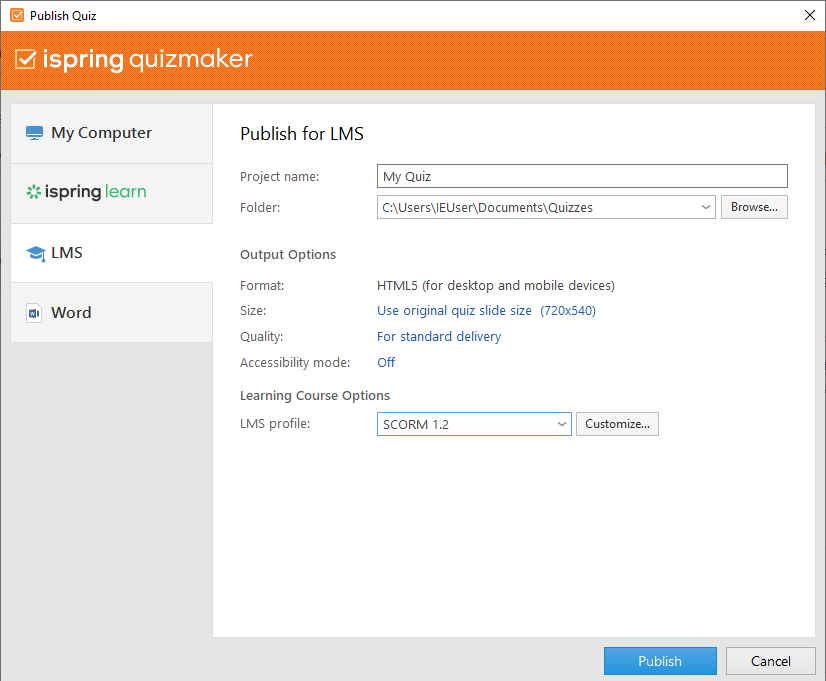
Export the quiz to a SCORM package (Menu → Publish → LMS).
2.4. Create an empty SCORM package
You can create an empty SCORM package for integration with proctoring if your content will be opened in IFRAME by URL (e.g. from LMS) on the proctoring side.
NOTE: The LMS SCORM player should use the same origin (domain) as the quiz. Otherwise, your assessment will not open in IFRAME because of the cross-origin policy. In addition, the assessment must support password access restrictions to prevent access to the assessment without proctoring.
You can download SCORM manifest XML schema definition files: 1.2 version or 2004 4th edition. For other SCORM versions, you can find files here.
Unpack the ZIP archive, add the "index.html" file, and pack it back into the ZIP archive. Use the following code for the "index.html" file:
<!doctype html>
<html lang="en">
<head>
  <meta charset="utf-8">
  <meta name="viewport" content="width=device-width, initial-scale=1">
  <title>Proctoring</title>
</head>
<body>
  <p>There is nothing here. This is a service page for proctoring.</p>
</body>
</html>
3. Inject the proctoring script into a SCORM package
You should do the following steps:
- Unpack the ZIP archive of the SCORM package.
-
Add the proctoring script to the "index.html" file at the end of the "body" section of it. There is the proctoring script code to insert:
<script>
  (function (host) {
    var script = document.createElement('script');
    script.setAttribute('src', `https://${host}/sdk/supervisor.js`);
    script.dataset.supervisor = 'init';
    script.onload = function () {
      top.supervisor.on('start', function () {
        document.body.style.visibility = 'visible';
      });
    };
    document.body.style.visibility = 'hidden';
    top.document.body.appendChild(script);
  })('demo.proctoring.app');
</script>
NOTE: You need to replace "demo.proctoring.app" with the domain of your proctoring server in the code.
NOTE: The proctoring script starts in the top window of the LMS page, so the SCORM package must have the same origin (domain) as the top window. Otherwise, the script cannot reach it, and the content of the package stays hidden.
-
Pack the ZIP archive again. This is the SCORM package that is integrated with your proctoring server.
4. Upload the SCORM package in your LMS
Next, you need to upload the SCORM package to your LMS that supports the version of SCORM you specified. How this is done depends on your LMS, so you should follow the LMS guides for this.
Before loading the SCORM package into your LMS, you can debug the SCORM package on SCORM Cloud.
5. Set up your proctoring server
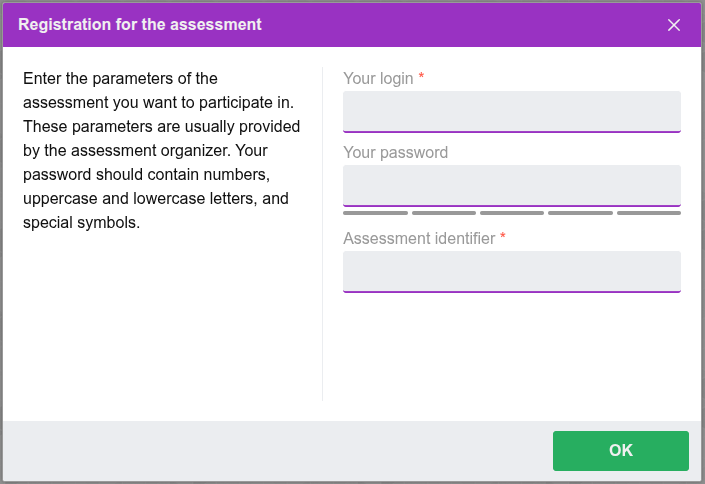
When a test-taker opens the SCORM unit in your LMS, the proctoring session begins to initialize. This will prompt your test-takers to fill in the fields:
- Login – the user's unique identifier (allows only "a-zA-Z0-9_-" characters).
- Assessment identifier – the session template identifier.
On your proctoring server you should create the session template (Assessment) with the following parameters:
- Identifier – the session template identifier that your test-takers must fill in.
- Provider – the integration provider, it should specify "signup" or an empty string.
- Content URL (optional) – the assessment URL in your LMS if you are using an empty SCORM package with the proctoring script for integration.
- Access code (optional) – the password to access the assessment in IFRAME.