Manager's Guide
1. System purpose
The OctoProctor proctoring system is designed to validate the results of online assessments when taking tests in learning management systems (LMS) and allows the following:
- remotely supervise the test-taker during the assessment;
- test-taker's identity verification;
- detect possible violations during the assessment and give a confidence rating;
- record the session including audio, video from the webcam and desktop;
- resolve any controversies occurring after the assessment based on the session log.
2. Technical requirements
There are no specific requirements for the administrator's computer. Any contemporary web browser is expected to be used for operation, but Chrome 92+ is recommended.
3. Logging in to the system
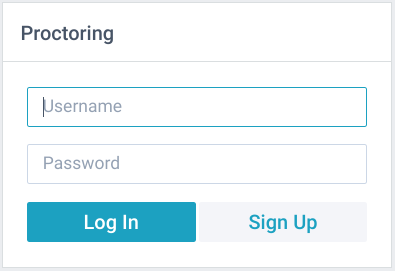
In order to log in to the proctoring system you have to open the address of the proctoring system in a web browser and enter your login and password. The user must have the appropriate rights to access the administrator interface.
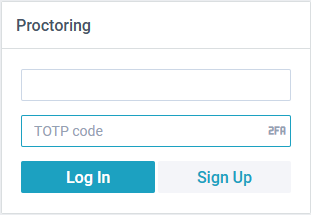
If Two-factor authentication (2FA) is enabled for the profile a user will be required to enter a one-time TOTP code, generated by the authenticator app such as Google Authenticator or Authy.
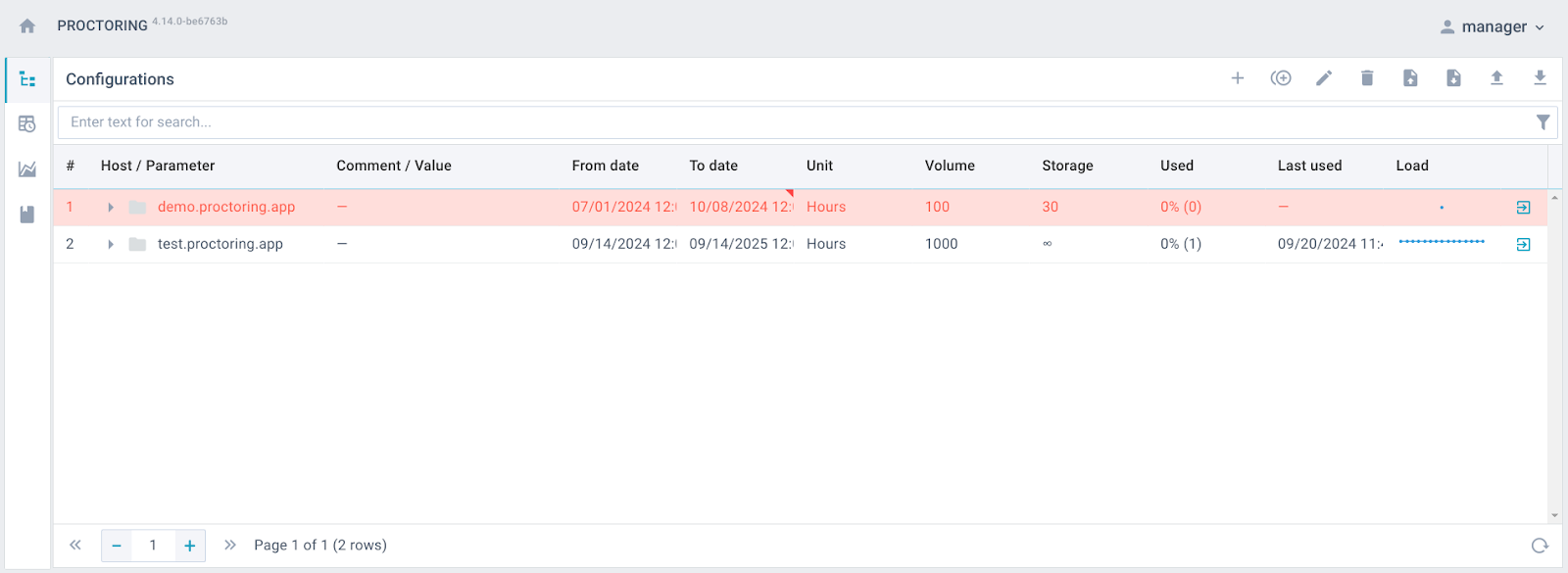
After logging in, the top panel of the interface contains the menu buttons for language switching, full screen window expansion, user profile options and the exit button. There is a navigation menu on the left side. And the central section displays a selected partition. To avoid the time display issues, make sure that the time and time zone are correctly set on your computer system settings.
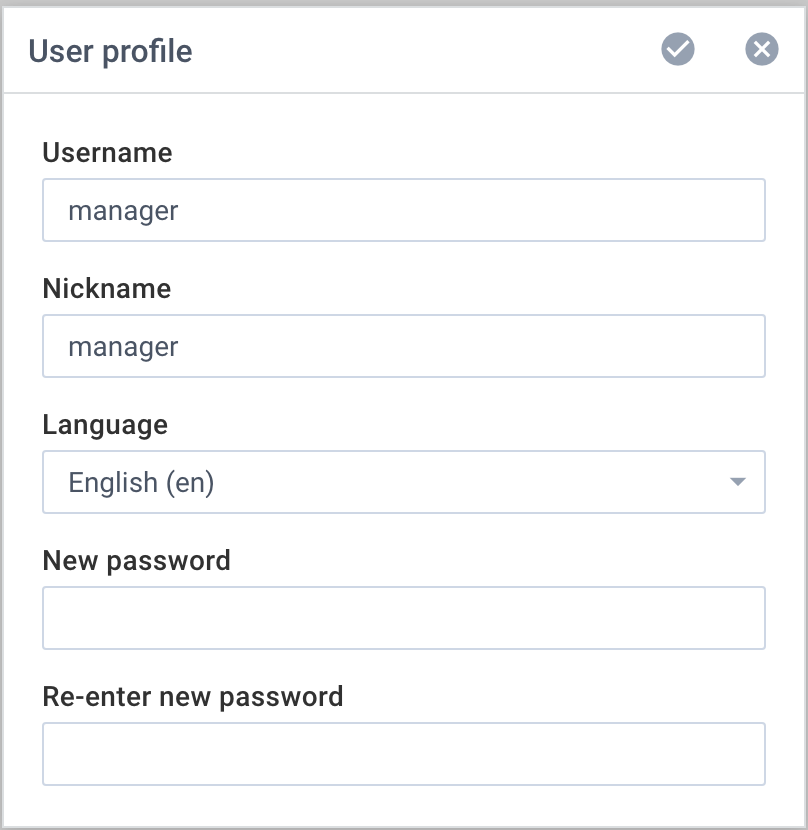
In the user profile, you can change the manager's login, password and interface language.
4. Configurations management
4.1. Configurations list
Each configuration is an isolated instance of the proctoring system with its own parameters and license. A list of these configurations is presented in the form of a table.
4.2. Adding a new configuration
There are two options for adding a new entry to the configuration list:
- Using the "Add" button ("+" icon)
- Configuration import via JSON file.
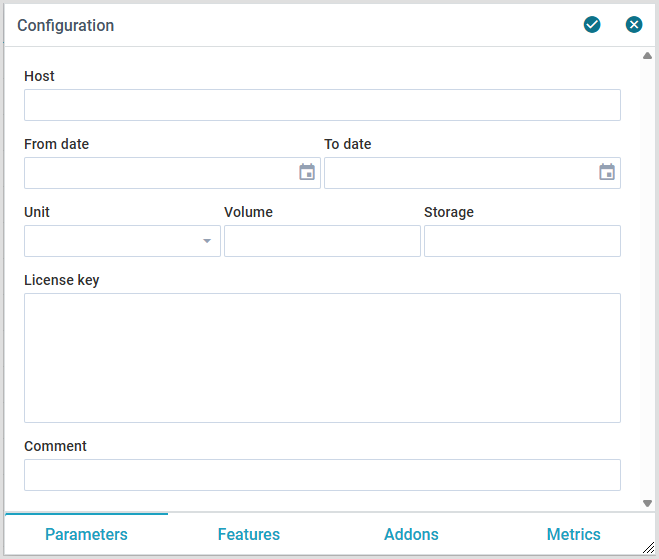
Adding a new entry is an entry of the license key and system instance parameters into the configuration list. Configurations are differentiated from each other by host name, one configuration cannot have two different hosts and different configurations cannot have the same host.
The license key contains (encoded):
- host name of the system instance
- license validity period
- charge unit
- volume in charging units
- number of days for storing session data
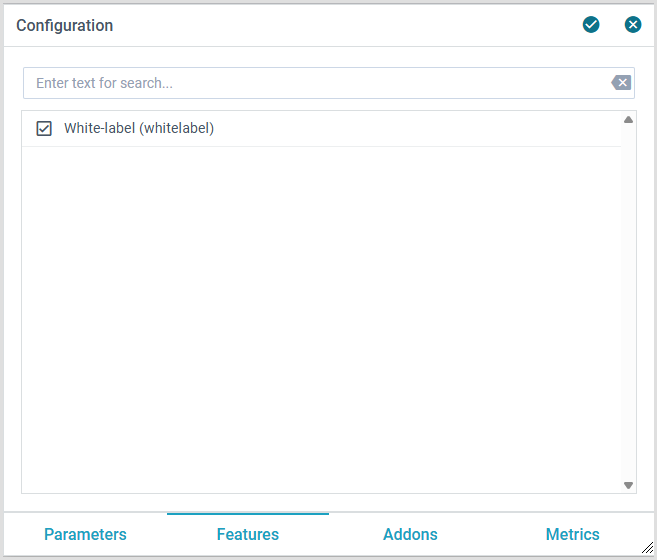
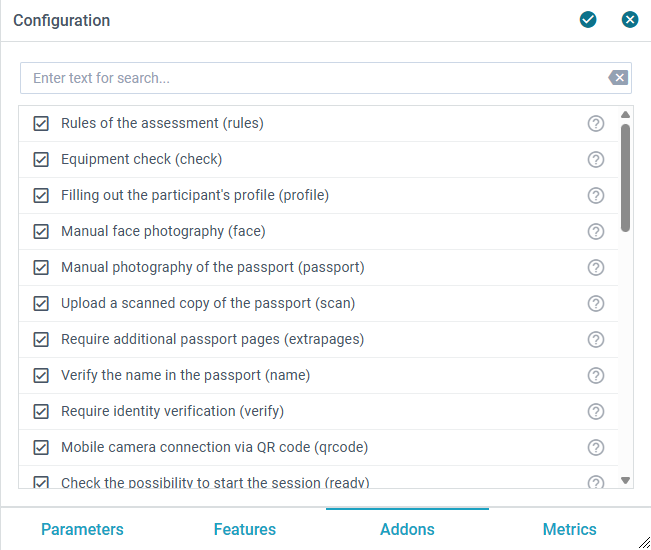
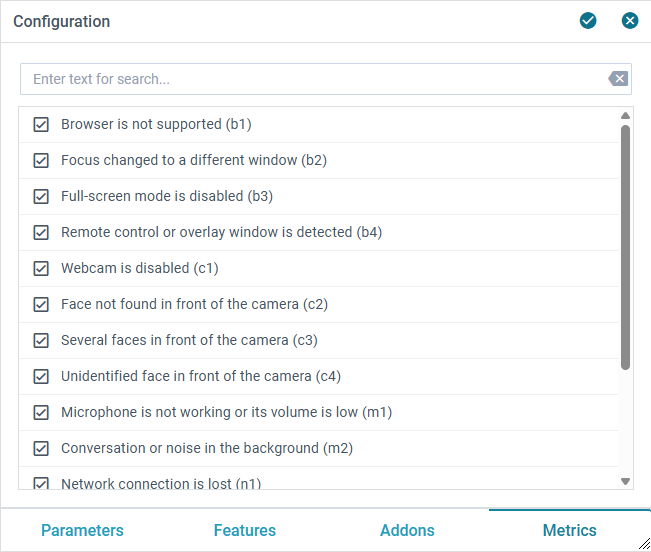
- features, addons and metrics covered by your license
Configuration import via JSON file.
The JSON file for importing the configuration must contain the key field and may additionally contain the params field with the system instance parameters. For example:
{
  "key": "...",
  "params": {
    "webhooks": {
      "jwt": {
        "strategy": "jwt",
        "secretOrKey": "secret",
        "profile": {
          "username": "payload.username",
          "role": "payload.role",
          "nickname": "payload.nickname"
        },
        "register": {
          "name": "payload.name",
          "subject": "payload.subject",
          "url": "payload.url",
          "template": "payload.template"
        }
      }
    }
  }
}
4.3. Integration parameters
The integration parameters define data exchange in between the proctoring system and the LMS. These parameters are specified in the webhooks section. The format of the fields is webhooks.<provider>.*, where <provider> is the name of the integration provider (random text identifier).
Parameters description:
| Parameter | Description |
|---|---|
webhooks.<provider>.strategy |
Integration strategy, may have the following values: jwt, lti, lti13, plain. |
"jwt" strategy only
| Parameter | Description |
|---|---|
webhooks.<provider>.secretOrKey |
Secret key used to verify JWT. |
"lti" strategy only
| Parameter | Description |
|---|---|
webhooks.<provider>.consumerKey |
LTI consumer key. |
webhooks.<provider>.consumerSecret |
LTI secret key. |
"lti13" strategy only
| Parameter | Description |
|---|---|
webhooks.<provider>.clientId |
LTI client ID (optional). |
webhooks.<provider>.privateKey |
Private key in PKCS#8 format. |
webhooks.<provider>.publicKeysetURL |
URL to retrieve the platform's public keys. |
webhooks.<provider>.accessTokenURL |
URL to retrieve the platform's access token. |
webhooks.<provider>.authRequestURL |
URL to perform the authorization request to the platform. |
Common parameters
| Parameter | Description |
|---|---|
webhooks.<provider>.callbackURL |
Redirect page after successful authorization, it is usually used with LTI integrations. |
webhooks.<provider>.headers.<header> |
Custom headers for outgoing requests (webhooks). |
webhooks.<provider>.profile.<field> |
Mapping of fields to populate the user's profile, which defines the logic behind the relationship between internal and external fields. External fields are accessible via the "payload" object. |
webhooks.<provider>.register.<field> |
Mapping of fields to fill in the session parameters, which takes place immediately after the user is authorized and uses the data that is passed along with the user data (the "payload" object). |
webhooks.<provider>.start.<field> |
Parameters of the handler that is called at session startup and is used to send startup data via the API to the LMS. |
webhooks.<provider>.pause.<field> |
Handler parameters that are called when the user has been disconnected for more than 2 minutes and are used to send the event data to the LMS via API. |
webhooks.<provider>.stop.<field> |
Parameters of the handler, which is called when the session is terminated and is used to transmit the termination data via API to the LMS. |
webhooks.<provider>.submit.<field> |
Parameters of the handler that is called when a session statement is issued or modified and used to send the results to the LMS via the API. |
4.4. SDK parameters
The SDK parameters define the settings for the client part of the proctoring system. These settings are specified under sdk.
Parameters description:
| Parameter | Description |
|---|---|
sdk.<webcam\|screen>.height |
maximum image height in pixels. |
sdk.<webcam\|screen>.width |
maximum image width in pixels. |
sdk.<webcam\|screen>.frameRate |
maximum video frame rate. |
sdk.<webcam\|screen>.bitrate.audio |
audio bitrate for video calls in kbps. |
sdk.<webcam\|screen>.bitrate.video |
video stream bitrate for video communication in kbps. |
sdk.<webcam\|screen>.recorder.audioBitsPerSecond |
audio recording bitrate in bps. |
sdk.<webcam\|screen>.recorder.videoBitsPerSecond |
video recording bitrate in bps. |
sdk.css.<param> |
SDK interface styling parameters, the following variables are supported <param>:--color-background: #fff;--color-foreground: #1b1718;--color-neutral: #a1a1a1;--color-neutral-foreground: #f5f5f5;--color-primary: #9932c2;--color-primary-foreground: var(--color-background);--color-secondary: #7a82f0;--color-secondary-foreground: var(--color-background);--color-success: #27ae60;--color-success-foreground: var(--color-background);--color-warning: #ffa500;--color-warning-foreground: var(--color-background);--color-danger: #ff5c4c;--color-danger-foreground: var(--color-background);--font-family: "Arial", "Helvetica", sans-serif;--font-family-monospace: monospace;--font-size: 16px;--line-height: 1.5em;--border-radius: 4px;--border-width: 2px;--backdrop-background: #00000080;--fab-size: 90px;--fab-border: 4px;--fab-offset-x: 10px;--fab-offset-y: 10px; |
sdk.iframe.allow |
"allow" option in IFRAME mode. |
sdk.iframe.sandbox |
"sandbox" option in IFRAME mode. |
4.5. Removing a configuration
In order to delete a configuration you no longer need, you select the row in the Configurations tab, click the Delete icon in the top panel, and the system will prompt you to enter the configuration's full name for confirmation.
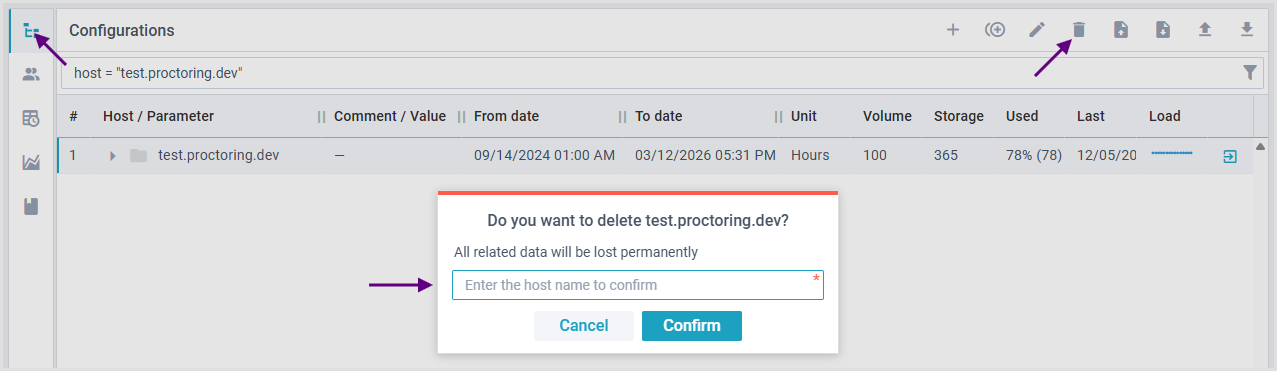
NOTE: Once deleted, the host cannot be restored. All data on the host will be purged.
5. Jobs
In the "Jobs" section you can monitor the execution of background tasks, such as collecting statistics on system usage, clearing unnecessary downloaded files, auto-completion and session cleanup. This is actually more system information and is only useful in case of some problems on the server or with integration.
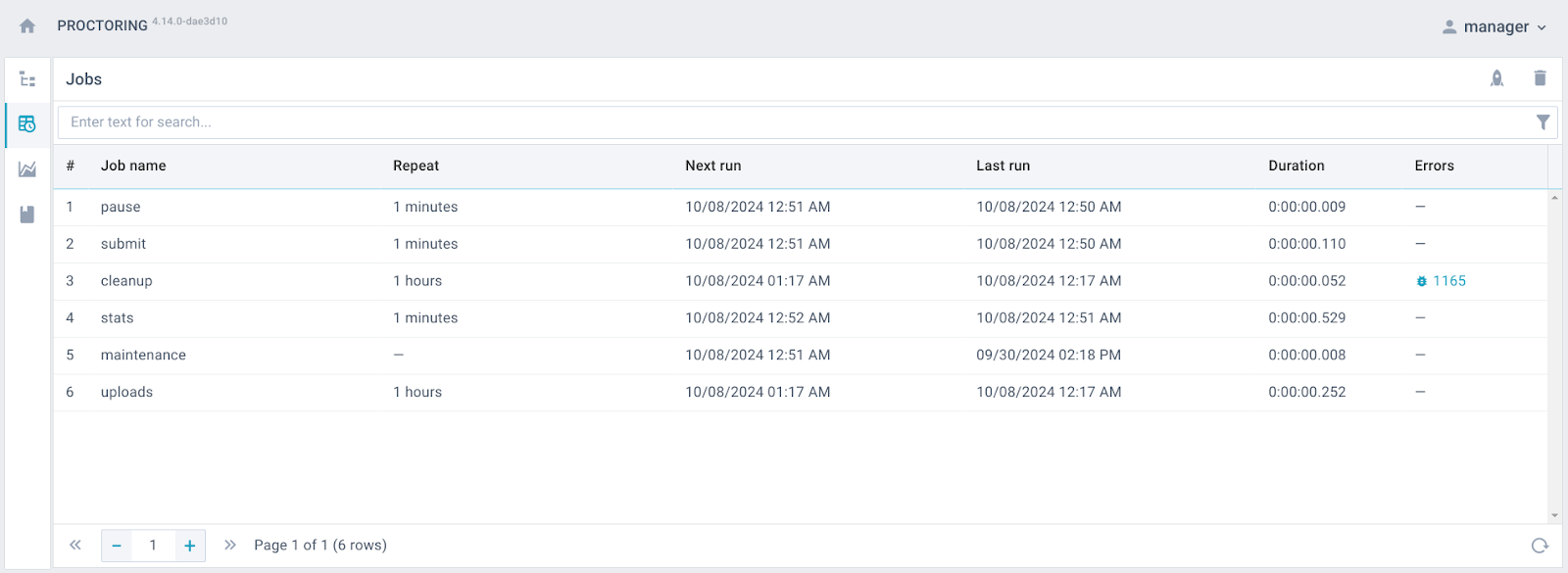
The tab includes the following fields:
- Next run - Shows the date and time the job is planned for. If empty, then the job is one-time
- Last run - Shows the time the job started. If empty, then the job hasn't been executed before
- Duration - Shows how long it took to execute and complete the job. If it is empty, then the job hasn't been executed ever before, or is being executed at the moment
- Errors - Shows description of errors if any happened
6. Statistics
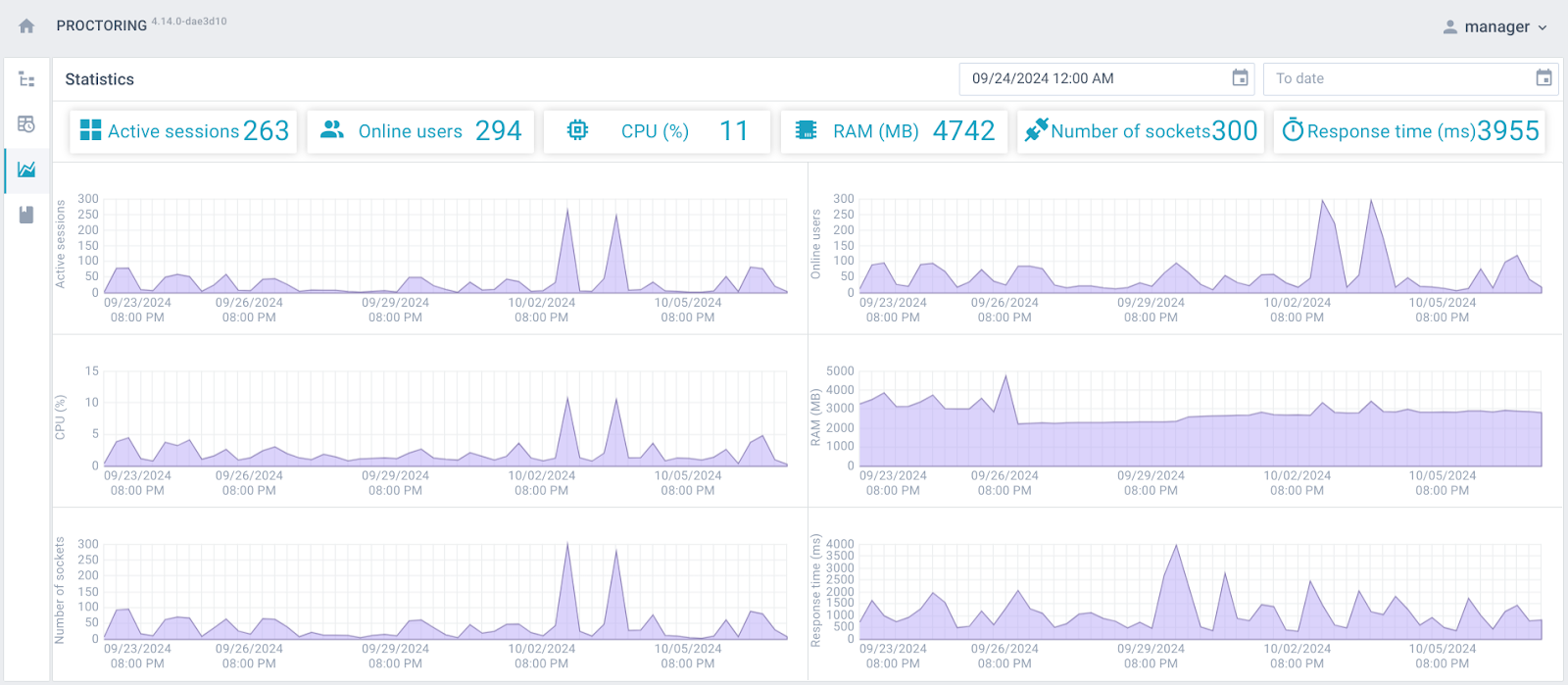
The Statistics interface displays the number of active sessions, online users, CPU and RAM usage on the server including all configurations. You can specify the date and time interval for which you want to view the statistics. The top part of the interface displays the maximum values of the indicators that were recorded during the specified time interval. If no date is specified, the data will be displayed for the last hour and the graphs will be updated every minute.
7. Journal
The Journal interface displays the log of changes in the proctoring system data. This function is designed to provide transparency and control over user actions in the system.
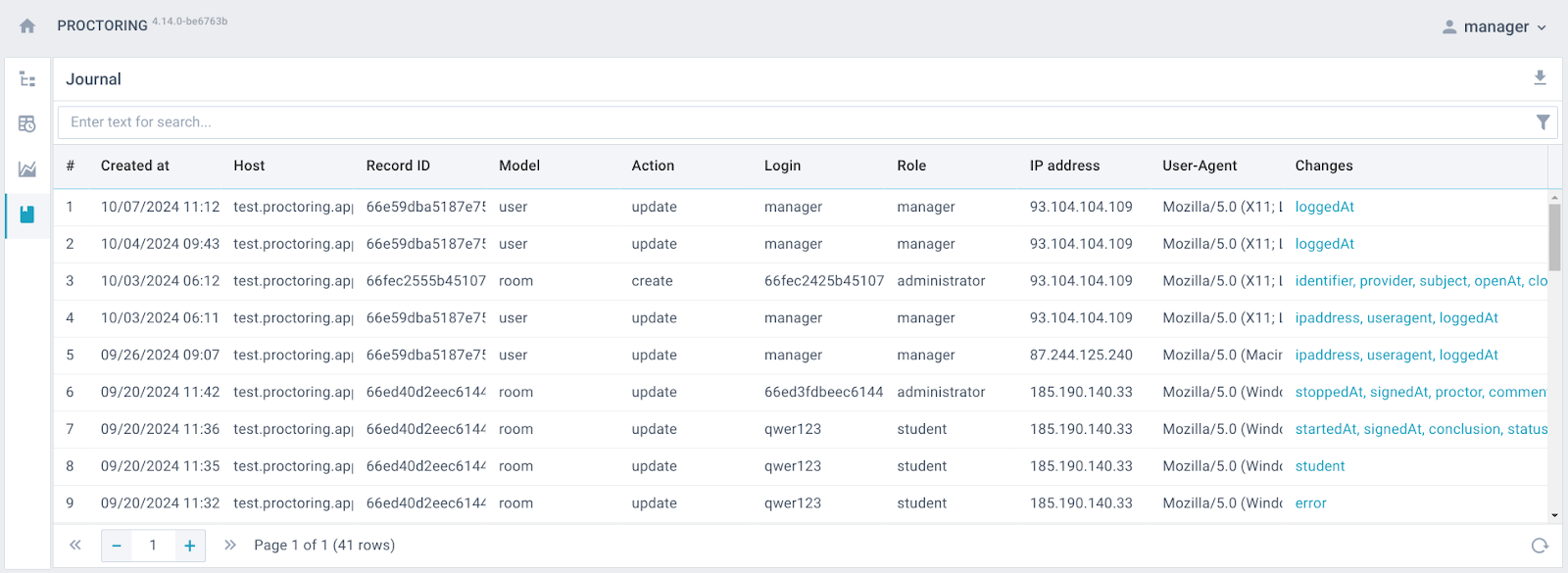
Changes in the "config", "user", "room", "draft" models are saved in the log. If the change is related to a specific user (for example, changed session parameters or logged into the system), then the "actor" of this change is indicated. If the change is not directly related to the user, then "actor" is not specified (for example, when the session status changes).
The manager can view the log for all hosts, including the manager's host. The log can be exported to CSV. And using the filter, you can select only the changes of interest from all.
8. License calculation
License usage is calculated per minute with no rounding up to the hour. For example, three 20-minute sessions will consume exactly one hour of license time. Data storage on the cloud server is 180 days by default. This period can be modified according to your license terms. The storage countdown begins only for finished sessions. Sessions that were never started do not consume license time, and their storage period is not initiated.